
Genesys Cloud
Connect Genesys Cloud to Taizen to import calls and transcripts
Connect Genesys Cloud to Taizen to import data and generate insights.
Step 1 — Start the connection in Taizen
- Go to Settings → Integrations
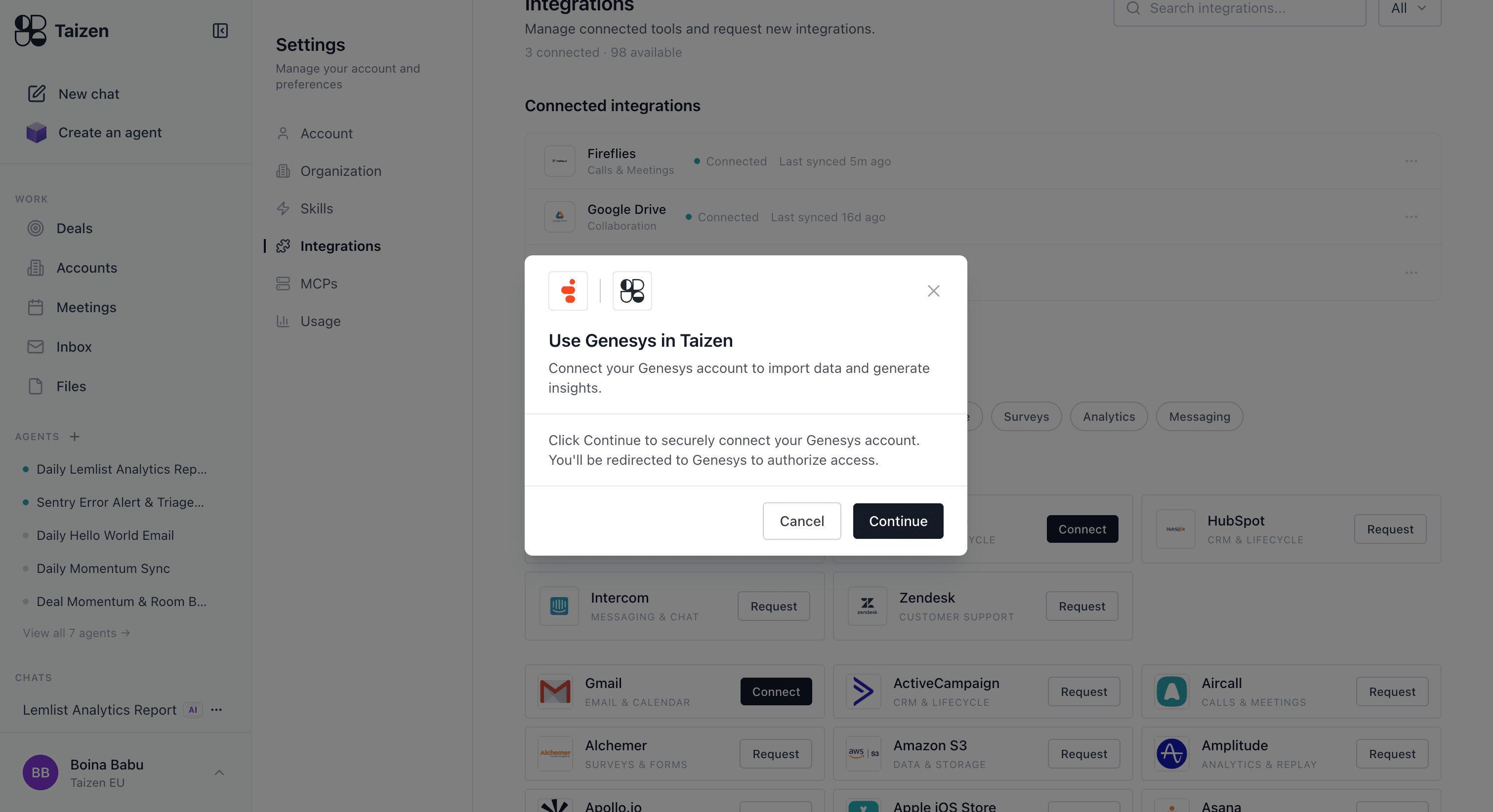
- Find Genesys and click Connect
- In the modal, click Continue — you'll be redirected to Genesys to authorize access
Step 2 — Log in to Genesys Cloud
You'll be redirected to Genesys Cloud to sign in as you normally would (SSO supported).
Step 3 — Review access and approve
On the permissions screen, review what Taizen can access, then click Allow. You'll be redirected back to Taizen and Genesys Cloud will show as Connected (it can take a few seconds).
Taizen requests read access to:
- Calls and conversation metadata
- Call recordings
- Transcripts and speech analytics
- Analytics and reporting data
- User and agent profiles
All of it read-only. The consent screen lists the exact scopes as Genesys currently names them, so review it there rather than against a list kept here.
Genesys Cloud requires both OAuth scopes and user permissions. If the connecting user doesn't have permission to view conversations, recordings, or transcripts in Genesys Cloud, Taizen may connect successfully but fail to sync some or all data.
Taizen only requests read access — it cannot create, modify, or delete anything in your Genesys Cloud account.
Troubleshooting
- Pop-up blocked: allow pop-ups for Taizen, then retry Connect
- Wrong Genesys Cloud org: log out of other Genesys Cloud sessions or use an incognito window
- Connected but nothing syncs: the connecting user may lack the required Genesys Cloud permissions for conversations, recordings, or transcripts — ask your admin to verify