
Salesforce
Connect Salesforce to Taizen
Connect Salesforce to Taizen. This takes ~2 minutes.
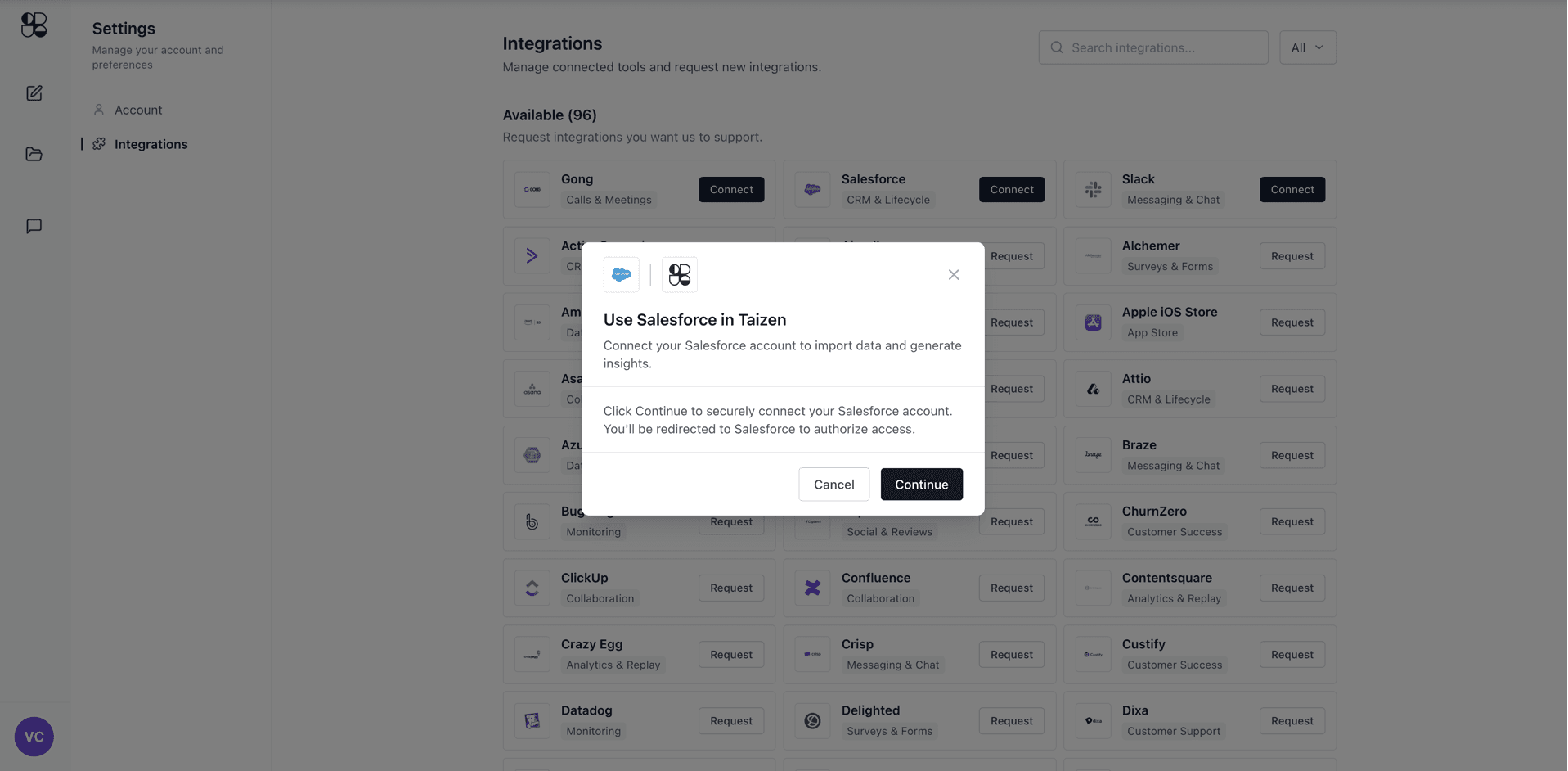
Step 1 — Start the connection in Taizen
- Go to Settings → Integrations
- Find Salesforce and click Connect
- In the modal, click Continue
Step 2 — Log in to Salesforce
A Salesforce login window will open. Sign in with your usual method (SSO/MFA supported).

Step 3 — Review access and approve
On the permissions screen, review what Taizen can access, then click Next (and Allow if prompted). You’ll be redirected back to Taizen and Salesforce will show as Connected (it can take a few seconds).

Taizen requests read + write access to:
- Opportunities
- Contacts
- Leads
- Accounts
- Users
- Notes
- Engagements
- Engagement types
- Stages
- Tasks
OAuth scopes:
openid— identify the authenticated userapi— read/write data via Salesforce APIsrefresh_token,offline_access— keep the connection active without re-authenticating
Troubleshooting
- Pop-up blocked: allow pop-ups for Taizen, then retry Connect
- Wrong Salesforce account/org: log out of other Salesforce sessions or use an incognito window