
Slack
Connect Slack to Taizen
Connect Slack to Taizen. This takes ~2 minutes.
Admin approval may be required: Some Slack workspaces restrict app installs to admins only. If you can’t complete the install, reach out to your Slack workspace admin to approve or install the Taizen Bot.
Step 1 — Start the connection in Taizen
- Go to Settings → Integrations
- Find Slack and click Connect
- In the modal, click Continue
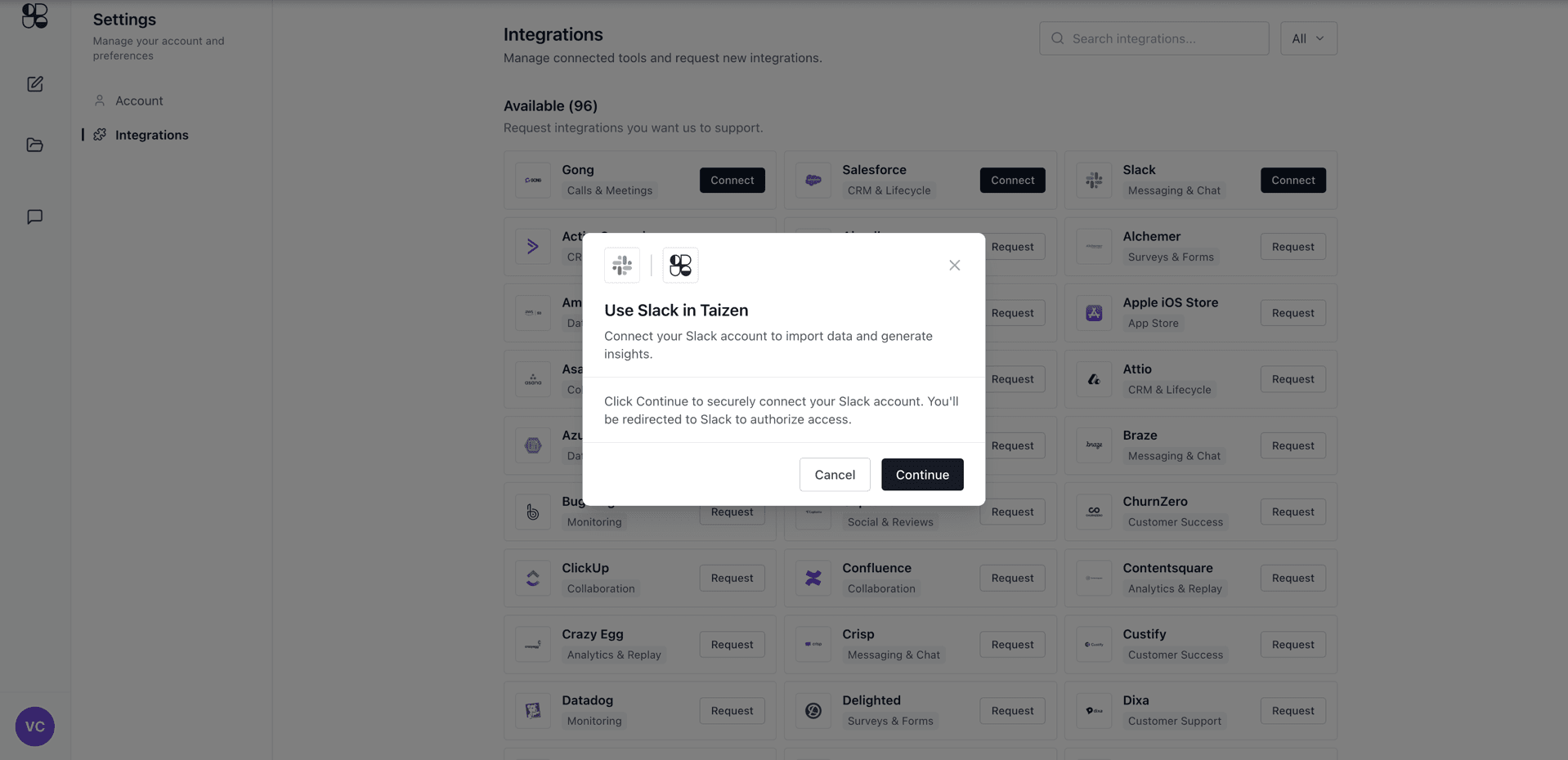
Step 2 — Approve access in Slack
You’ll be redirected to Slack to review permissions.
- Select the right Workspace
- Review the requested permissions (scopes)
- Click Allow
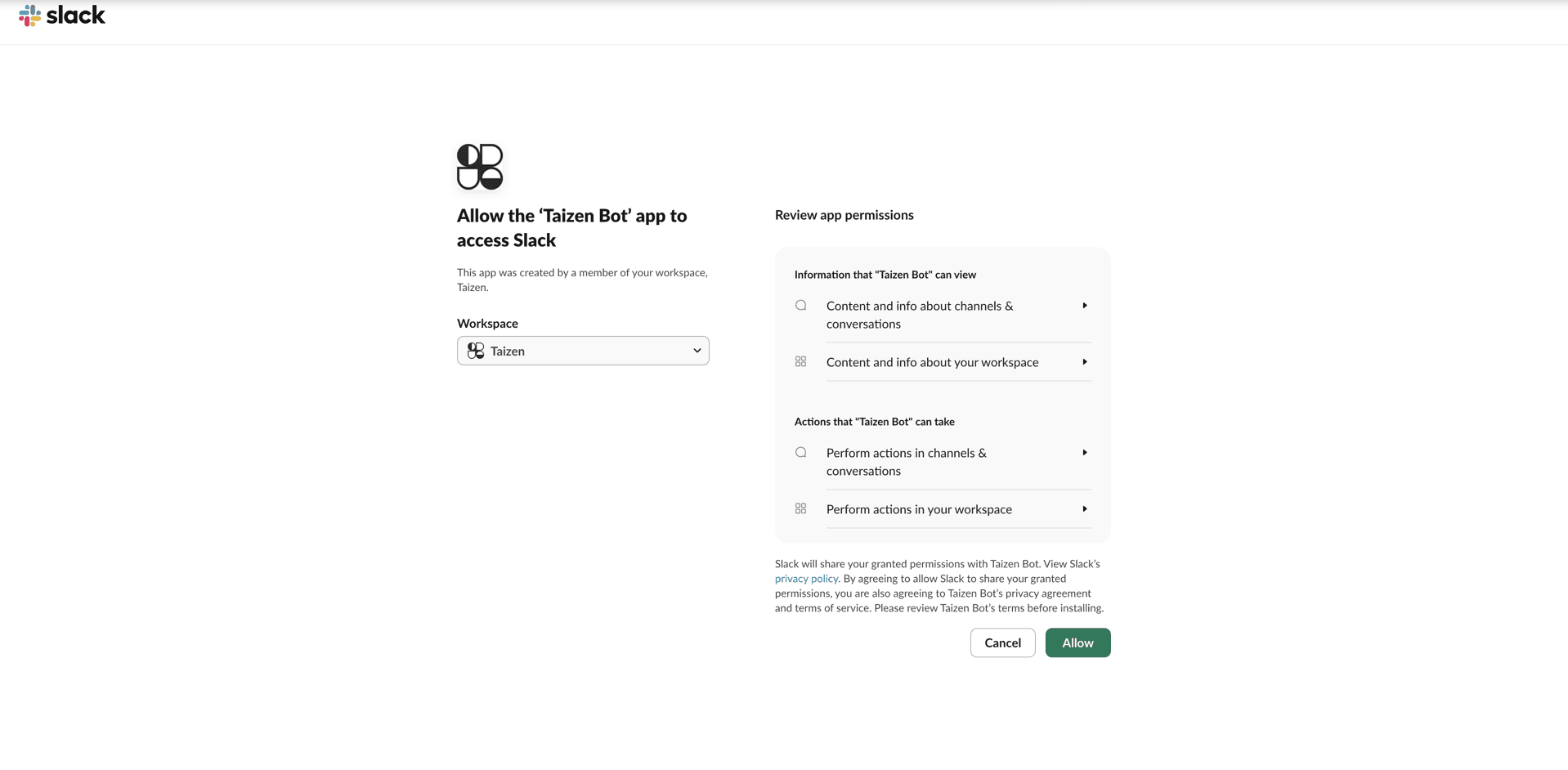
Requested permissions (scopes)
Taizen requests the following Slack scopes to read relevant context and post messages where needed:
app_mentions:readchannels:history,channels:readchat:writecommandsgroups:history,groups:readim:history,im:readmpim:history,mpim:readusers:read,users:read.emailteam:readusergroups:readreactions:read,reactions:writefiles:read,files:writelinks:read,links:write
Step 3 — Finish in Taizen
After you click Allow, you’ll be redirected back to Taizen and Slack will show as Connected (it can take a few seconds).
Troubleshooting
- Pop-up blocked: allow pop-ups for Taizen, then retry Connect
- Wrong workspace: use the workspace dropdown on the Slack screen before clicking Allow