
Integrations overview
How connections work, what to connect first, and how scopes decide what agents can do.
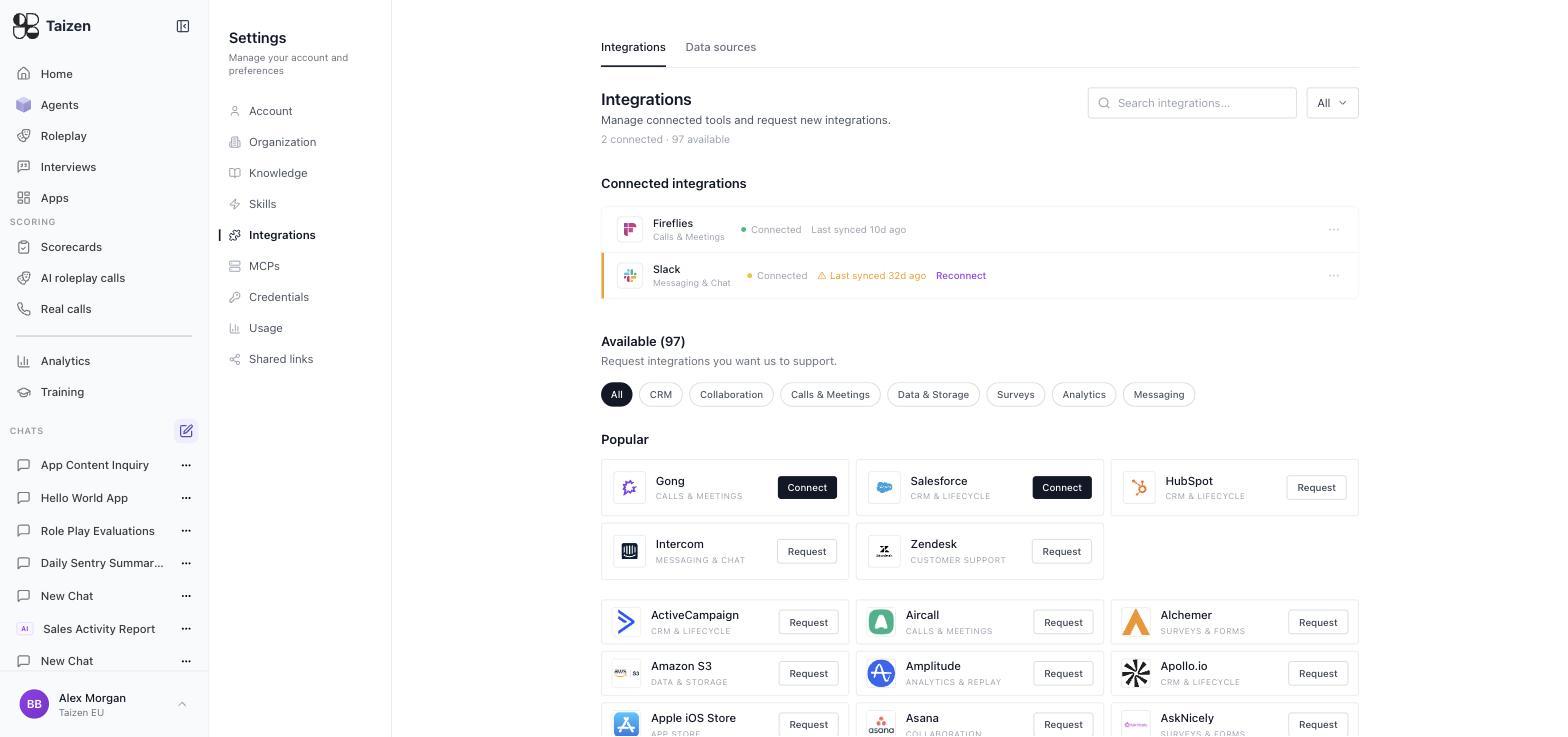
Agents read from and write to the tools your team already uses. Settings → Integrations shows what's connected and what's available, with a Data sources tab for sync state.
Most of it is one click — OAuth, usually over MCP, with no keys to copy. A few providers ask for an API key instead, because they don't offer the OAuth flow Taizen uses. See one-click connections, and the catalog for everything else.
Connect these first
In this order, because each unlocks the next:
- A call source — Gong, Genesys Cloud, or Fireflies. Without calls, agents have no conversations to reason about and roleplay has no history to build a buyer from.
- A CRM — Salesforce or HubSpot. Supplies deals, stages, owners and close reasons, and is where agents write back.
- Slack — the most common delivery destination.
Everything else is additive.
Salesforce
CRM — deals, contacts, write-back
Gong
Calls and transcripts
Genesys Cloud
Contact centre calls
Slack
Delivery and messaging
Over 100 integrations exist across call intelligence, CRM, sales engagement, support and workspace tools — see the catalog.
Connecting one
Find it under Settings → Integrations and click Connect, or Settings → MCPs for an MCP server. Two shapes:
- OAuth — one click. A popup opens the provider's own consent screen; you approve and it's live. This covers most of the catalog, as well as any MCP server you paste in. Taizen never sees a password.
- API keys. Create the key in the provider's own admin settings with read access to the data you want, then paste it in.
Each integration's tile says which of the two it uses, so you don't have to guess before you start.
Taizen validates the connection, then begins syncing. The first sync backfills history and can run for a while; you don't have to wait for it before building your first agent.
Scopes decide what agents can do
This is the part worth reading twice. A connection can succeed while still being unable to do the job, if the scopes are too narrow. Gong is the classic case: connect without transcript scopes and the connection validates, but no transcripts arrive.
Each setup guide says which kinds of access a connection needs. Exact scope names belong to the provider and change with their API, so check their current documentation when you create the key. Two rules:
- Grant read scopes generously, since reading is what makes output specific.
- Grant write scopes deliberately. CRM write-back is powerful, so watch the first week of runs before you leave it unsupervised — see validation and review.
An integration connected read-only will report that it couldn't write rather than silently pretending it did.
Workspace-level vs user-level
Some integrations connect for the whole organization; others connect per user — a personal calendar or mailbox is naturally per user, a CRM is organizational. The Integrations screen distinguishes them, and an agent sees both the workspace connections and the connections of the user it runs as.
Sync state
Settings → Integrations → Data sources is where you check freshness. Each connection shows when it last synced, and a connection needing attention shows a Reconnect prompt — usually an expired or revoked token.
Get in the habit of looking here before debugging an agent. "The agent's output is generic" and "the integration hasn't synced in 32 days" are the same bug.
What connecting changes
- Agents can read that system's data during runs (what agents can see)
- Agents can deliver to it, if it's a destination (delivery)
- Its records become searchable in Ask Taizen
- Its calls become scoreable (score real calls)