
Build an agent
Describe what you want in plain language, watch the spec fill in, test it, then save.
You build agents by talking to a builder, not by filling in a form. The form fills itself in as you talk, on the right of the screen, and you can edit any field in it directly.
The two panes
Agents → New Agent opens a split screen.
- Left — the builder chat. Describe what the agent should do. Answer its questions.
- Right — the Agent spec. Three cards that populate as the builder works: Trigger, Workflow, Delivery, with a Verified badge at the top once the agent has a successful run behind it. Below them, test runs and evaluations.
- Bottom right — the controls. Fast run, Full run, Evaluate, and Save agent.
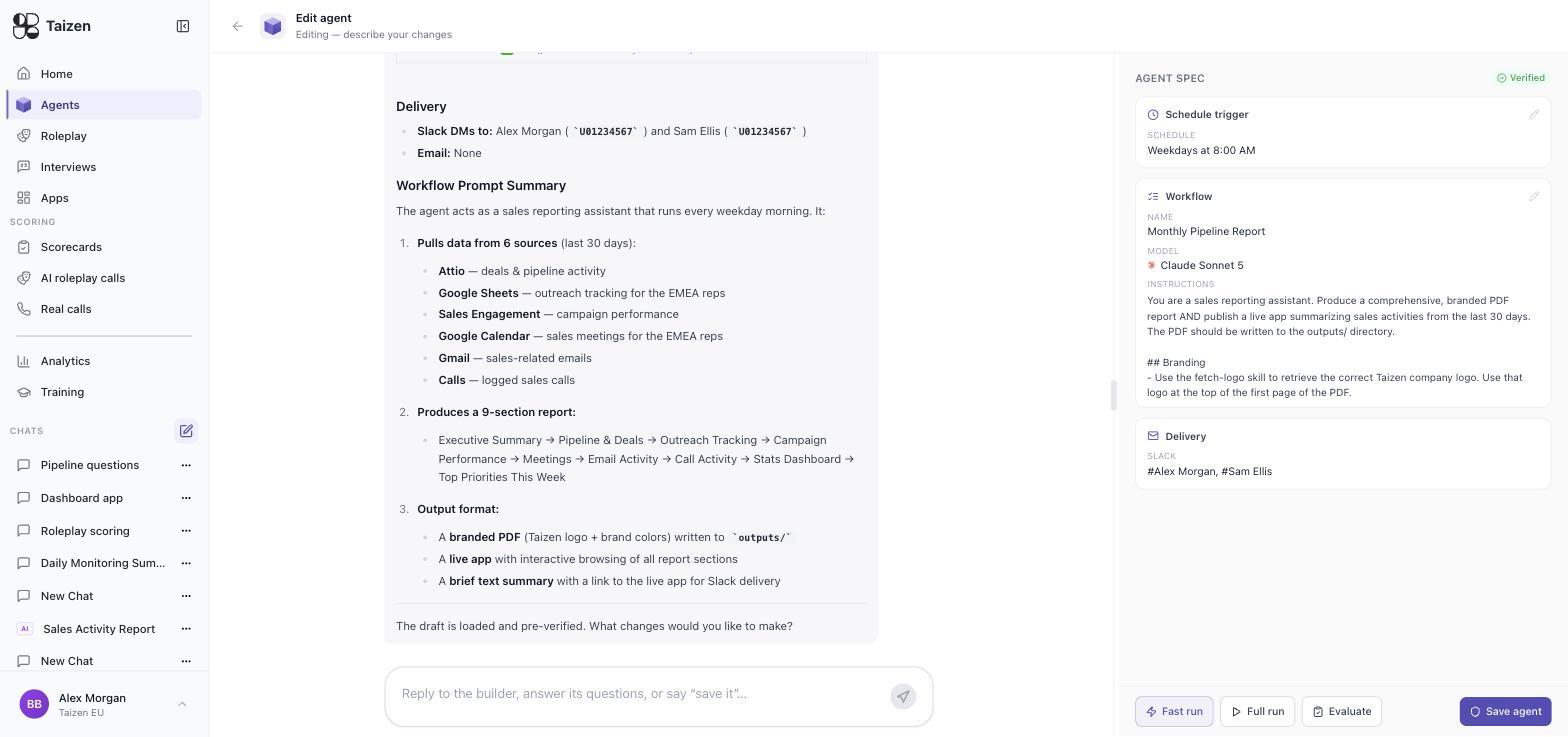
Anything the builder gets wrong you can fix in either place: tell it in the chat, or click the pencil on the spec card and edit the field directly.
Opening an existing agent's Edit loads the same screen with its current configuration, and the builder summarizes what it loaded — kind, schedule, model, sources, delivery — before you change anything.
Build one
Describe the job
Be specific about the trigger and the destination, because those are the two things a vague description gets wrong:
Every weekday at 7am, find external calls on the sales team's calendars for that day.
For each one, pull our email and call history with that account plus recent company news,
and post a prep brief to #sales-prep.
Answer the builder's questions
It will ask about the things that change the output materially — which team, which time zone, whether to include internal meetings, how long the brief should be. Answering "you decide" is fine; it will pick something and show you.
Check the spec
Trigger card — either a Schedule trigger (with a cron schedule, rendered in plain English, editable with a schedule builder) or an Event trigger (showing the service, the tool it watches, its dispatch mode, and a description of what it watches). See triggers.
Workflow card — the agent's name, its model, and its instructions. All three are editable. Model choice is grouped by provider; pick a frontier model for reasoning-heavy work and a faster one for high-volume mechanical work.
Delivery card — Slack channels and email recipients. "Framework default" means delivery hasn't been set yet and the agent will use whatever its type defaults to. See delivery.
Test it
Three controls at the bottom of the spec panel:
| Control | Does |
|---|---|
| Fast run | Runs against a narrowed input set, for a quick check of the output's shape |
| Full run | Runs against everything the agent would really see |
| Evaluate | Scores the run's output rather than just producing it |
A test run appears under TEST RUNS with the output (expandable, including any files it produced), how long it took, and what it cost to four decimal places. A Fast badge marks a narrowed run — expand it to see exactly what was reduced and what prompt actually ran.
Test runs do not deliver anywhere. Iterate as many times as you need; the history is kept so you can compare versions against each other.
A Fast run tells you the shape of the output is right; it doesn't tell you the agent handles volume. Do one Full run before you ship.
Read the output like a recipient
The most common failure isn't a broken agent, it's a boring one. Ask yourself whether a rep skimming Slack at 8am would act on this. If not, the fix is usually in the instructions: say what to leave out, not just what to include.
Save it
Save agent. It appears in Agents with its trigger on the row, Active — an agent you built yourself goes live on save, so the first scheduled fire is real. (Agents that arrive from someone else, or from a template, wait in Pending validation instead — see validation and review.)
Editing later, the builder notes which changes need re-verifying: name, schedule and delivery edits don't require a fresh run, but changing the prompt or the model does.
Evaluations
When the builder evaluates its own output, an Evaluations card appears in the spec panel — one per evaluation, newest last. This is what the verified badge at the top of the spec panel refers to: the agent has been checked against a run, not just written.
Treat a verified agent as tested, not proven. Watch its first three real runs.
Editing a saved agent
Open the agent and edit it the same way — a chat plus the spec. Changes take effect on the next run; they don't retroactively change history, so the Timeline stays an honest record of what the agent did when.
Building from a template
Agents → Templates, grouped by team. Picking a template opens the builder with the spec pre-filled, so you're editing rather than starting cold. This is the faster path for anything resembling a standard GTM motion — see templates.